How to Temporarily Disable Your Account: A Comprehensive Guide
In today’s fast-paced world, sometimes you just need a break from social media. Whether it’s to focus on your mental well-being, manage your time better, or just take a step back from online interactions, temporarily disabling your account can be a practical solution. This guide will walk you through the steps to temporarily disable various accounts, with a focus on popular platforms like Facebook and Instagram.
Understanding Temporary Account Deactivation
Temporarily disabling an account means that you will not be able to access it, and others won’t be able to see your profile or contact you until you reactivate it. The good news is that your data remains safe with the platform, and you can return whenever you feel ready.

Benefits of Temporarily Disabling Your Account
- Reduced distractions: Social media can be a significant distraction. Taking a break allows you to refocus on personal goals.
- Mental health: Social media can sometimes contribute to anxiety and other mental health issues. A break can provide a much-needed respite.
- Improved productivity: With less time spent scrolling, you can devote more time to hobbies, work, or relationships.
How to Temporarily Disable Your Facebook Account
Facebook makes it relatively easy to temporarily disable your account. Follow the steps below:
- Log into your Facebook account.
- Click on the small triangle in the top-right corner to access the settings menu.
- Select Settings & Privacy and then click on Settings.
- In the left sidebar, choose Account Ownership and Control.
- Click on the Deactivation and Deletion option.
- Select Deactivate Account and click Continue to Account Deactivation.
- Follow the prompts to complete the process. Make sure to provide a reason for your deactivation if prompted.
Your account will be temporarily disabled, and you can reactivate it by logging back in whenever you’re ready.
How to Temporarily Disable Your Instagram Account
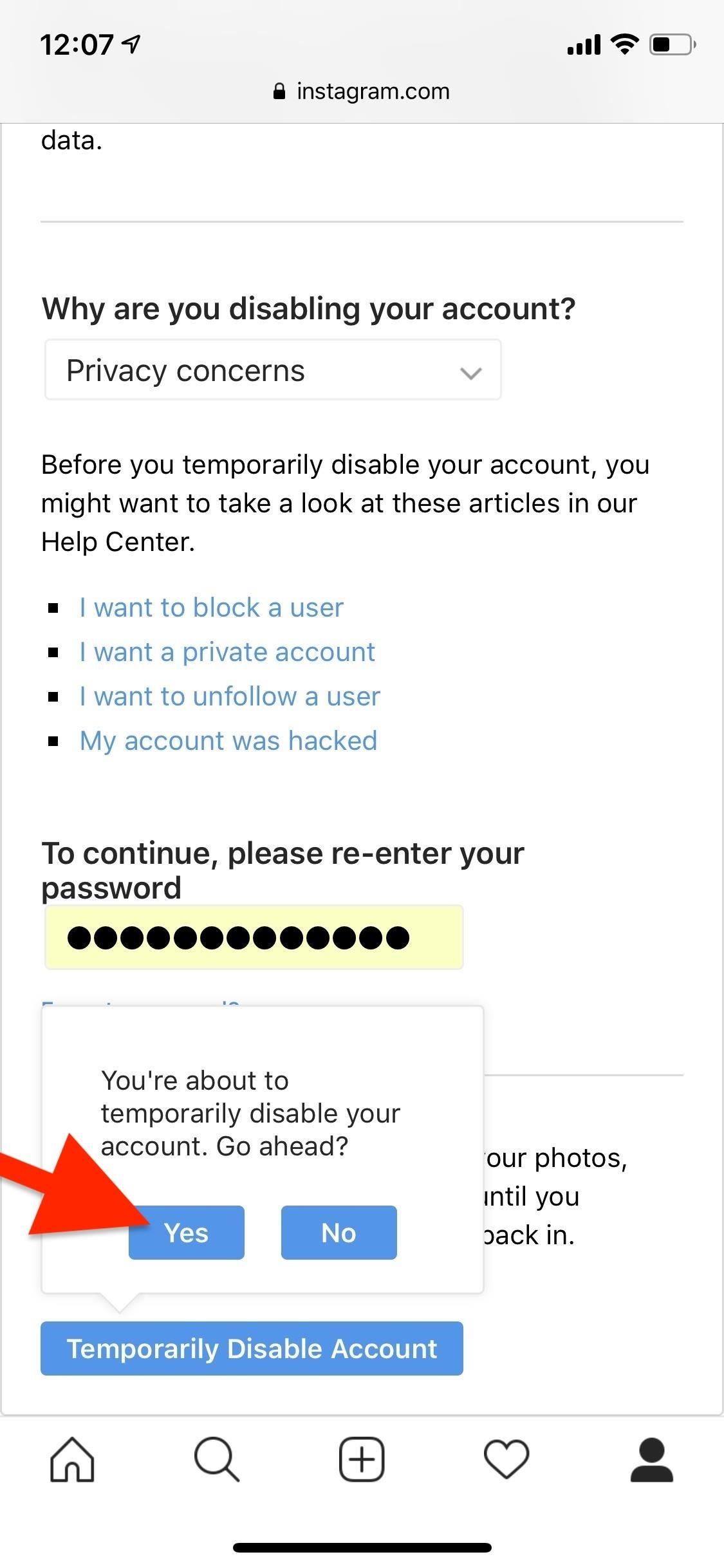
Instagram also allows users to take a break. Here’s how:
- Log into your Instagram account through a mobile browser or desktop (this option isn’t available in the app).
- Go to your profile and click on Edit Profile.
- Scroll down to the bottom and find the option that says Temporarily disable my account.
- Select a reason for your deactivation and re-enter your password.
- Click on Temporarily Disable Account.
Your Instagram account will be deactivated until you log back in.
How to Temporarily Disable Other Social Media Accounts
For platforms other than Facebook and Instagram, the process can vary. Here are some general steps you can follow:
- Look for the account settings or profile settings option.
- Search for the privacy or security section within the settings.
- Check if there is an option to deactivate or disable your account temporarily.
- If unsure, consult the help or support section of the platform for guidance.
Things to Consider Before Temporarily Disabling Your Account
While disabling an account can be beneficial, there are some factors to consider:
- Loss of connectivity: You won’t be able to see updates from friends or engage with your social circle.
- Impact on accounts linked to your profile: Some services may rely on your social media accounts for login or notifications.
- Information retention: Ensure that any important information is saved outside the platform before deactivation.
Reactivating Your Account
When you choose to return to your social media accounts, reactivation is usually straightforward:
- Log back into the account using your normal login credentials.
- Follow any prompts to confirm that you want to reactivate the account.
After completing these steps, your account and all its content should be fully restored.
Conclusion
Temporarily disabling your social media account can be a healthy decision for many users. It allows you to take a break and focus on life outside the digital realm. By following the steps highlighted in this article, you can easily manage your online presence, ensuring that it remains a positive part of your life.
For detailed instructions on disabling your Facebook account, visit this How to Temporarily Disable a Facebook Account https://crazyfb.shop/en/page/kak-vremenno-otklyuchit-akkaunt-facebook.